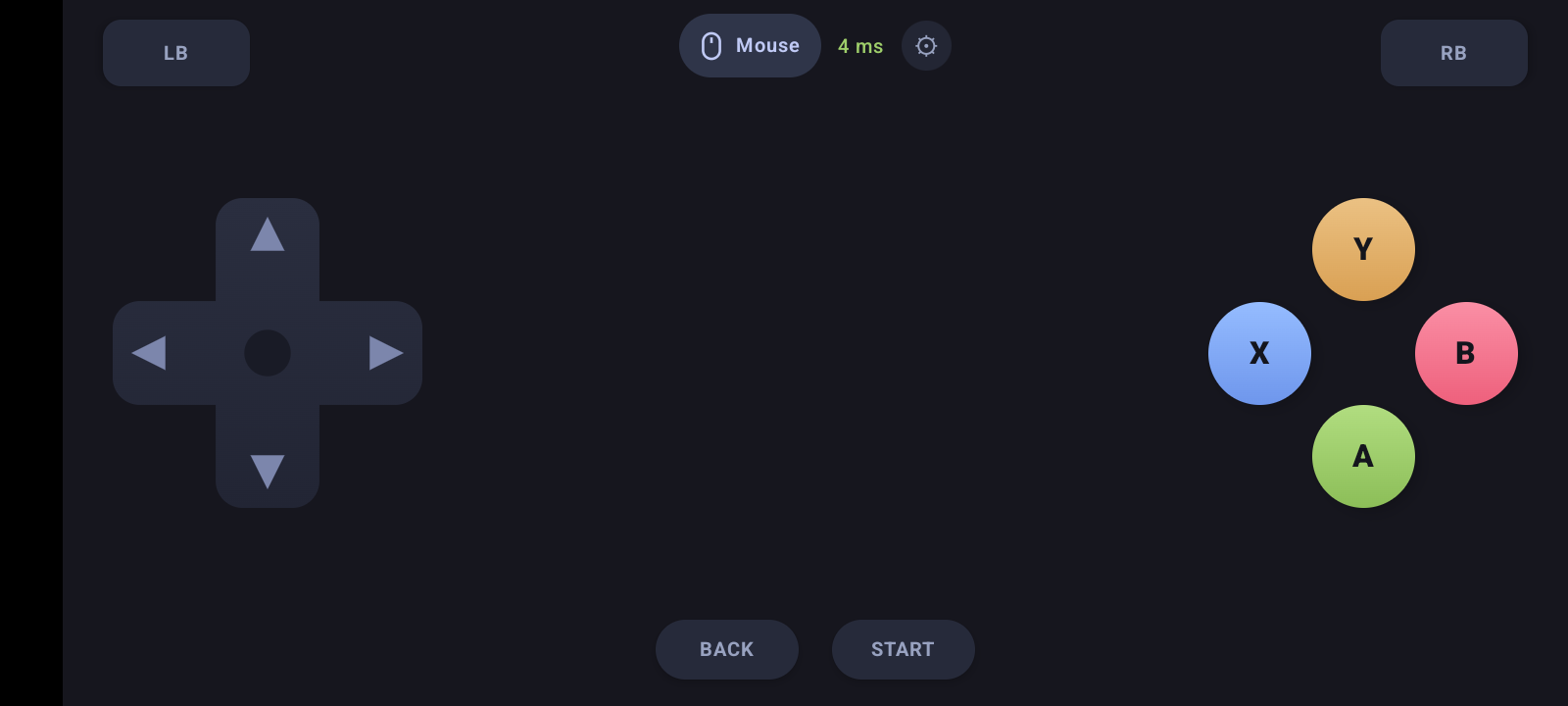
Your phone is the game controller.
PocketPad turns your Android phone into a wireless Xbox controller for any PC game. Install it on both, scan one QR code, play.
You need both: the PC app and the phone app. Latest version · Step-by-step install guide ↓
How to install
Do both: the PC app and the phone app. Pick the device you're on.
Swipe sideways to see all 7 steps →
On your phone, tap the green Android phone button above. Chrome warns “File might be harmful” — tap Download anyway.
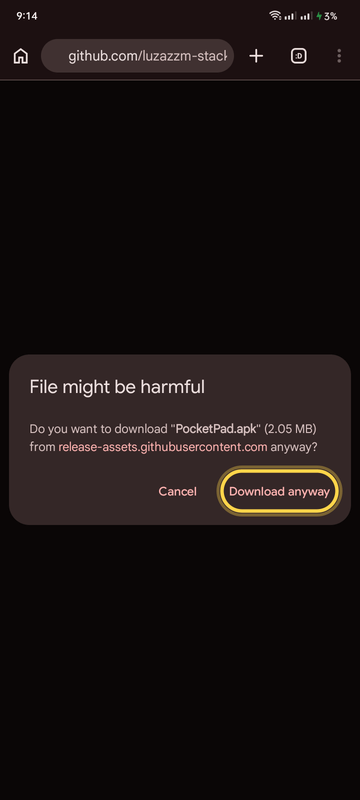
When “File downloaded” appears at the top, tap Open.

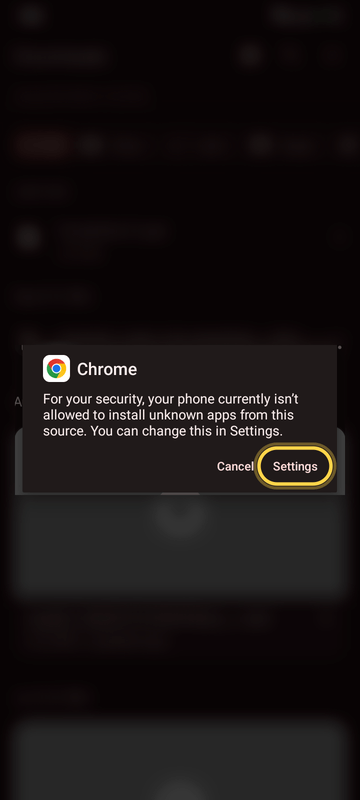
If your phone says it isn't allowed to install unknown apps, tap Settings.
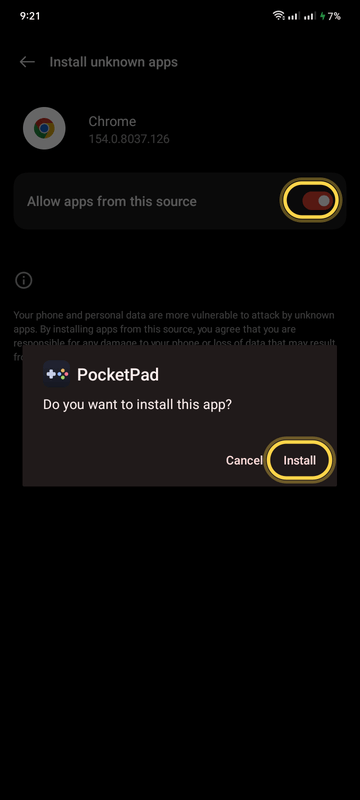
Turn on Allow from this source, then tap Install.
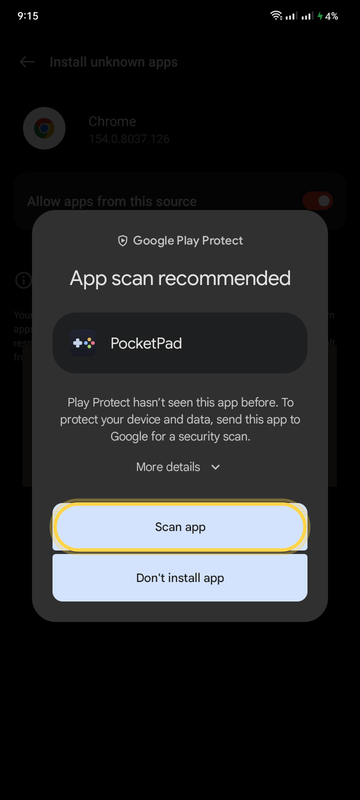
Google Play Protect may suggest a scan. Tap Scan app — it takes a few seconds.
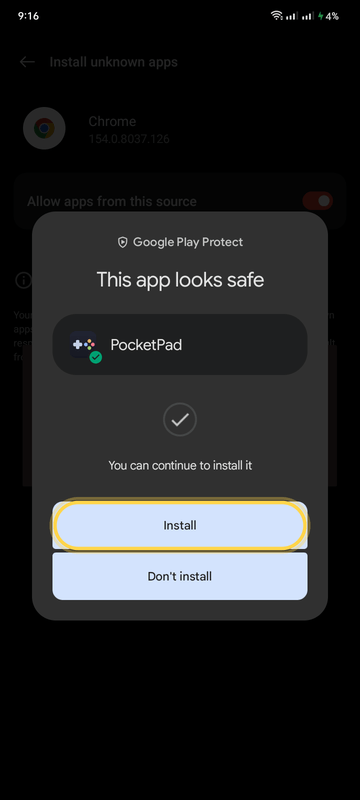
“This app looks safe.” Tap Install.
“App installed.” Tap Open. PocketPad is now on your home screen too.
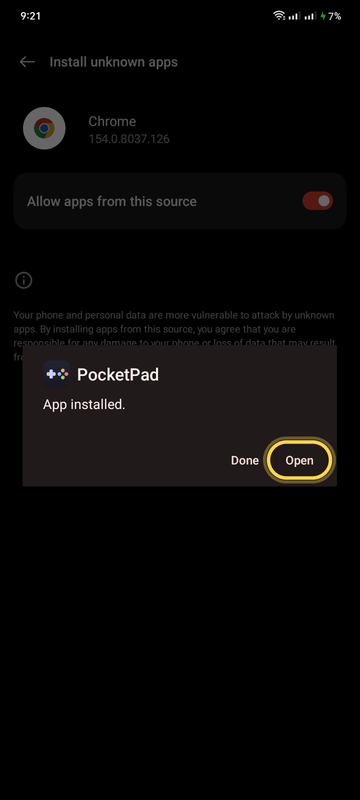
Screenshots are from a realme phone. Other brands word things slightly differently, but the steps are the same. PocketPad isn't on the Play Store yet, which is why Android shows these warnings.
- Download with the blue Windows PC button above, then open PocketPad-Setup.exe from your Downloads.
- “Windows protected your PC”? Click More info then Run anyway. It shows because the app is new, not because something is wrong.
- Click Yes when Windows asks for permission, then Install and Finish.
- That's it. The controller driver and firewall setting are installed for you. Nothing else to download.
- Open PocketPad from your desktop (click Yes again). Keep its window open while you play.
Connect & play
Phone and PC on the same Wi-Fi. After the first time, it's just open both apps and tap Connect.
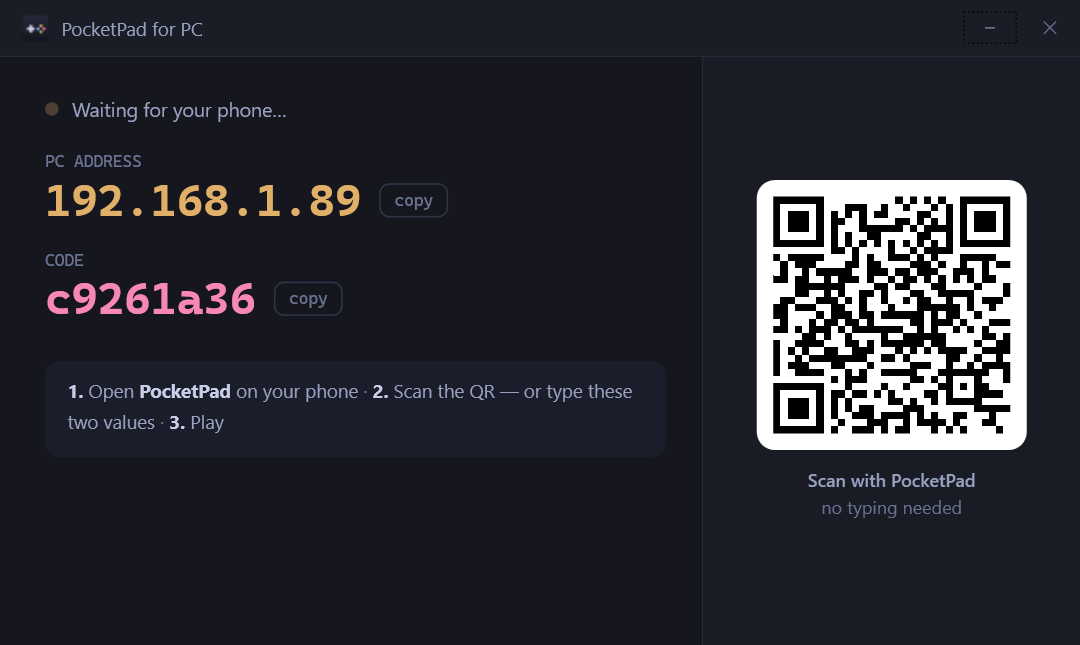
Open the PC app
Double-click PocketPad on your desktop. It shows a QR code.
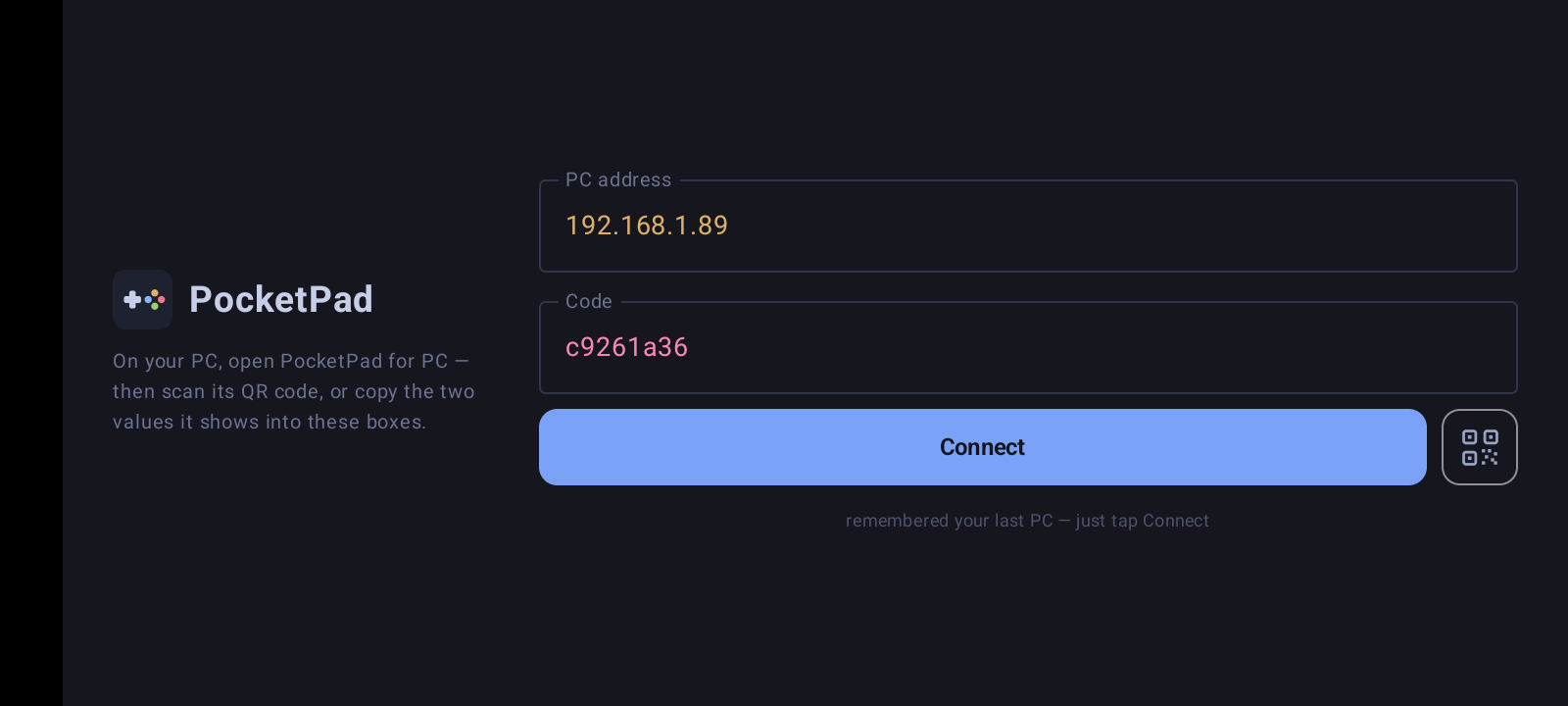
Scan with the phone
In the phone app, tap the QR button next to Connect and point it at the PC screen.
Start your game
The PC window turns green. Now start the game — it sees a normal Xbox controller.
Something not working?
“Couldn't find the PC”
Check the PC app is open and both devices are on the same Wi-Fi, then scan the QR code again. If your PC moved to a different Wi-Fi, the phone looks for it by itself (“Looking for your PC…”).
It never connects on hotel, café, airport or office guest Wi-Fi
Those networks stop devices from talking to each other. Turn on your phone's hotspot and connect the PC to it instead.
The game doesn't react
Connect first, then start the game. If the game was already running, restart it.
It disconnects by itself
On the phone: Settings → Apps → PocketPad → Battery → Unrestricted. Some phones put apps to sleep to save battery.
The delay number is orange or red
Move closer to the Wi-Fi router, or use the phone's hotspot.
Can I use a USB cable instead of Wi-Fi?
Yes — and it's the steadiest connection, great for several phones at once. One-time setup on each phone: Settings → About phone → tap Build number 7 times, then Settings → Developer options → turn on USB debugging. Plug the phone into the PC and tap Allow on the "Allow USB debugging?" popup. From then on, open the phone app and tap Connect with USB cable — no code needed.
Can I play with friends?
Yes — up to 4 phones on one PC. Everyone installs the phone app and scans the same QR code; each phone becomes its own controller.
How do I update or remove it?
To update, download from the buttons again and install over the old version — your settings stay. To remove: on the PC, Settings → Apps → PocketPad → Uninstall; on the phone, hold the icon → Uninstall.
Ready to play?
Get both apps — they're free.